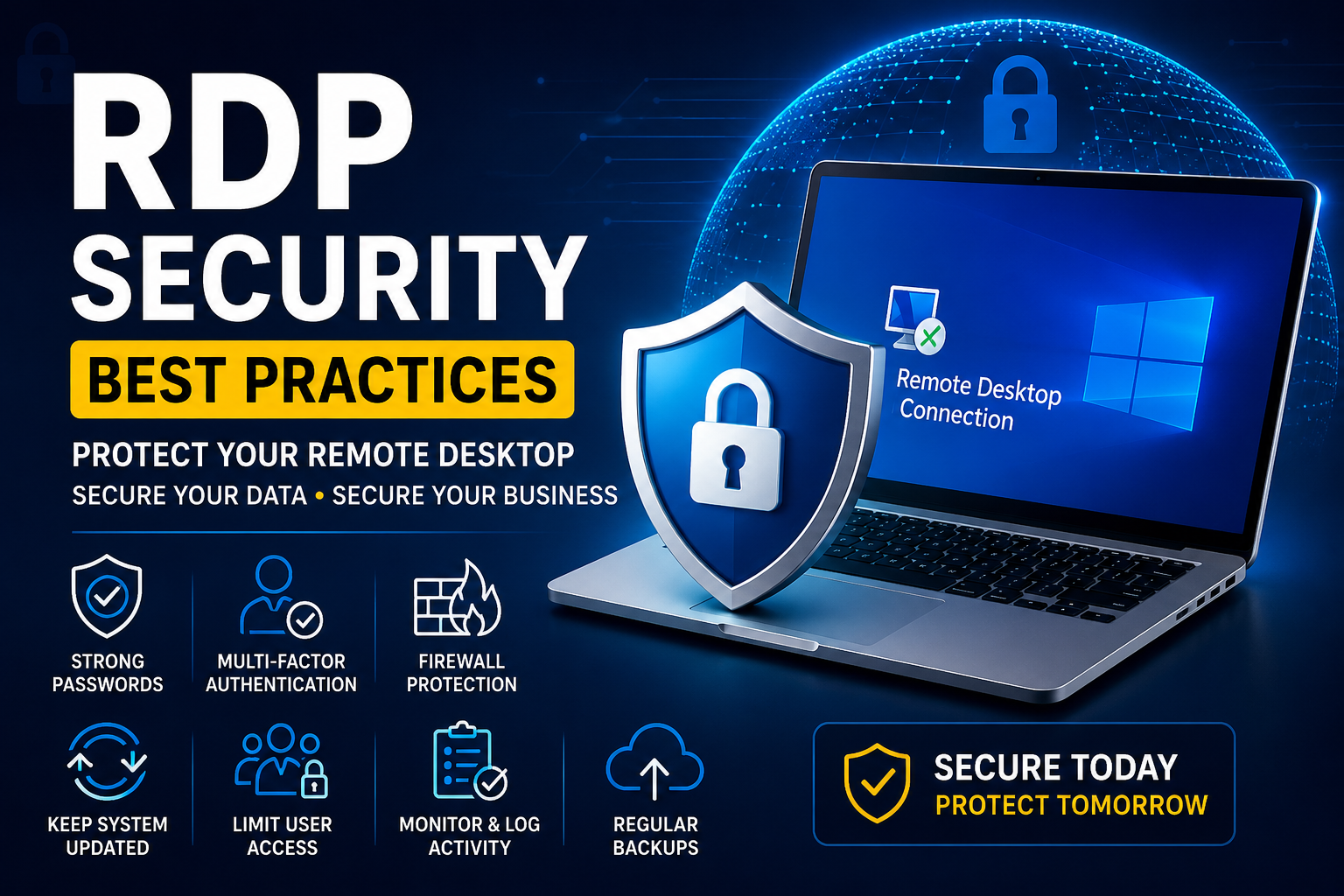
Windows Remote Desktop Protocol (RDP) has become an essential tool for businesses, developers, freelancers, and IT professionals. It allows users to securely access Windows servers and computers from virtually anywhere.
However, because RDP is widely used, it is also a common target for cybercriminals. Weak passwords, outdated software, and poor security configurations can expose your server to unauthorized access.
This guide explains the most effective RDP security practices to help protect your server, business data, and remote users.
Why RDP Security Matters
An unsecured RDP server may become vulnerable to:
- Brute force attacks
- Password guessing
- Malware infections
- Ransomware
- Unauthorized access
- Data theft
- Service disruption
Implementing proper security measures significantly reduces these risks.
Use Strong Passwords
The first line of defense is a strong password.
A secure password should:
- Be at least 12 to 16 characters long.
- Include uppercase and lowercase letters.
- Include numbers.
- Include special characters.
- Avoid common words or personal information.
Never reuse passwords across multiple accounts.
Enable Multi Factor Authentication (MFA)
Whenever supported by your environment, enable Multi Factor Authentication.
Benefits include:
- Extra account protection
- Reduced risk of stolen passwords
- Improved login security
- Better compliance with security standards
Keep Windows Updated
Install Windows security updates regularly.
Updates often include:
- Security patches
- Bug fixes
- Performance improvements
- Vulnerability fixes
Delaying updates can leave your server exposed.
Enable Windows Firewall
Windows Firewall should remain enabled.
Configure firewall rules to:
- Allow only required services.
- Block unnecessary ports.
- Restrict inbound traffic where appropriate.
Restrict RDP Access
Avoid allowing Remote Desktop access from every IP address.
Instead:
- Allow only trusted IP addresses where practical.
- Use VPN access before exposing RDP to the internet.
- Limit administrative access to authorized users.
Change the Default RDP Port
By default, RDP uses port 3389.
Changing the listening port does not replace proper security controls, but it may reduce automated scanning attempts.
Remember to update firewall rules if the port changes.
Use Network Level Authentication (NLA)
Enable Network Level Authentication (NLA).
Benefits:
- Authentication occurs before a full desktop session is established.
- Reduces server resource usage.
- Provides an additional layer of protection.
Disable Unused User Accounts
Review local and administrator accounts regularly.
Disable or remove:
- Unused accounts
- Temporary accounts
- Old employee accounts
Fewer active accounts reduce the attack surface.
Apply the Principle of Least Privilege
Only grant users the permissions they need.
Avoid giving administrator privileges unless absolutely necessary.
Enable Account Lockout Policies
Configure account lockout policies to reduce brute force attacks.
Example:
- Lock account after several failed login attempts.
- Automatically unlock after a specified period.
- Log failed authentication attempts.
Use Antivirus and Endpoint Protection
Install trusted security software and keep it updated.
Features to enable include:
- Real time protection
- Malware detection
- Scheduled scans
- Threat monitoring
Monitor Login Activity
Regularly review login logs for:
- Failed login attempts
- Unknown IP addresses
- Unusual login times
- Repeated authentication failures
Early detection can prevent larger security incidents.
Enable Automatic Backups
Maintain regular backups of:
- System configuration
- Important files
- Databases
- User data
Store backups securely and test restoration procedures periodically.
Encrypt Sensitive Data
Protect confidential information by:
- Using full disk encryption where appropriate.
- Encrypting sensitive files.
- Securing backup storage.
Avoid Public Wi Fi
Avoid connecting to RDP sessions over unsecured public Wi Fi networks.
If remote access from public networks is necessary, use a trusted VPN connection.
Limit Clipboard and Drive Redirection
If users do not require these features, consider disabling:
- Clipboard sharing
- Local drive redirection
- Printer redirection
- Device redirection
Reducing unnecessary features can lower security risks.
Use Secure Remote Management
For business environments, consider:
- VPN protected access
- Bastion hosts
- Secure remote gateways
- Identity based access controls
These approaches provide stronger protection than exposing RDP directly to the internet.
Regular Security Audits
Perform routine security reviews to verify:
- User permissions
- Firewall rules
- Windows updates
- Antivirus status
- Backup health
- Event logs
Common RDP Security Mistakes
Avoid these common mistakes:
- Weak passwords
- Sharing administrator accounts
- Ignoring Windows updates
- Exposing RDP directly to the internet without additional protections
- Disabling the firewall
- Using outdated software
- Never reviewing login logs
- Failing to create backups
RDP Security Checklist
✔ Strong passwords
✔ Multi Factor Authentication
✔ Windows Firewall enabled
✔ Latest Windows updates installed
✔ Network Level Authentication enabled
✔ Trusted antivirus installed
✔ Regular backups configured
✔ User permissions reviewed
✔ Login monitoring enabled
✔ Secure remote access configuration
Conclusion
RDP is a powerful remote access technology, but its security depends on proper configuration and ongoing maintenance. By using strong authentication, keeping systems updated, limiting access, monitoring activity, and following security best practices, you can greatly reduce the risk of unauthorized access and protect your business data.
Security is not a one time task. Regular reviews, timely updates, and good operational practices are essential for maintaining a secure Remote Desktop environment.
Frequently Asked Questions
Is changing the default RDP port enough to secure my server?
No. Changing the port may reduce automated scanning, but it should be combined with strong passwords, firewall rules, updates, and other security measures.
Should I expose RDP directly to the internet?
For many environments, it is safer to use a VPN or a secure remote access gateway rather than exposing RDP directly to the public internet.
How often should I update my Windows server?
Install security updates as soon as practical after testing them, especially when they address known vulnerabilities.
Why is Network Level Authentication important?
Network Level Authentication requires users to authenticate before a full Remote Desktop session is established, improving both security and efficiency.